Unofficial fan guide. Images are generated, and unverified game features are never presented as confirmed.
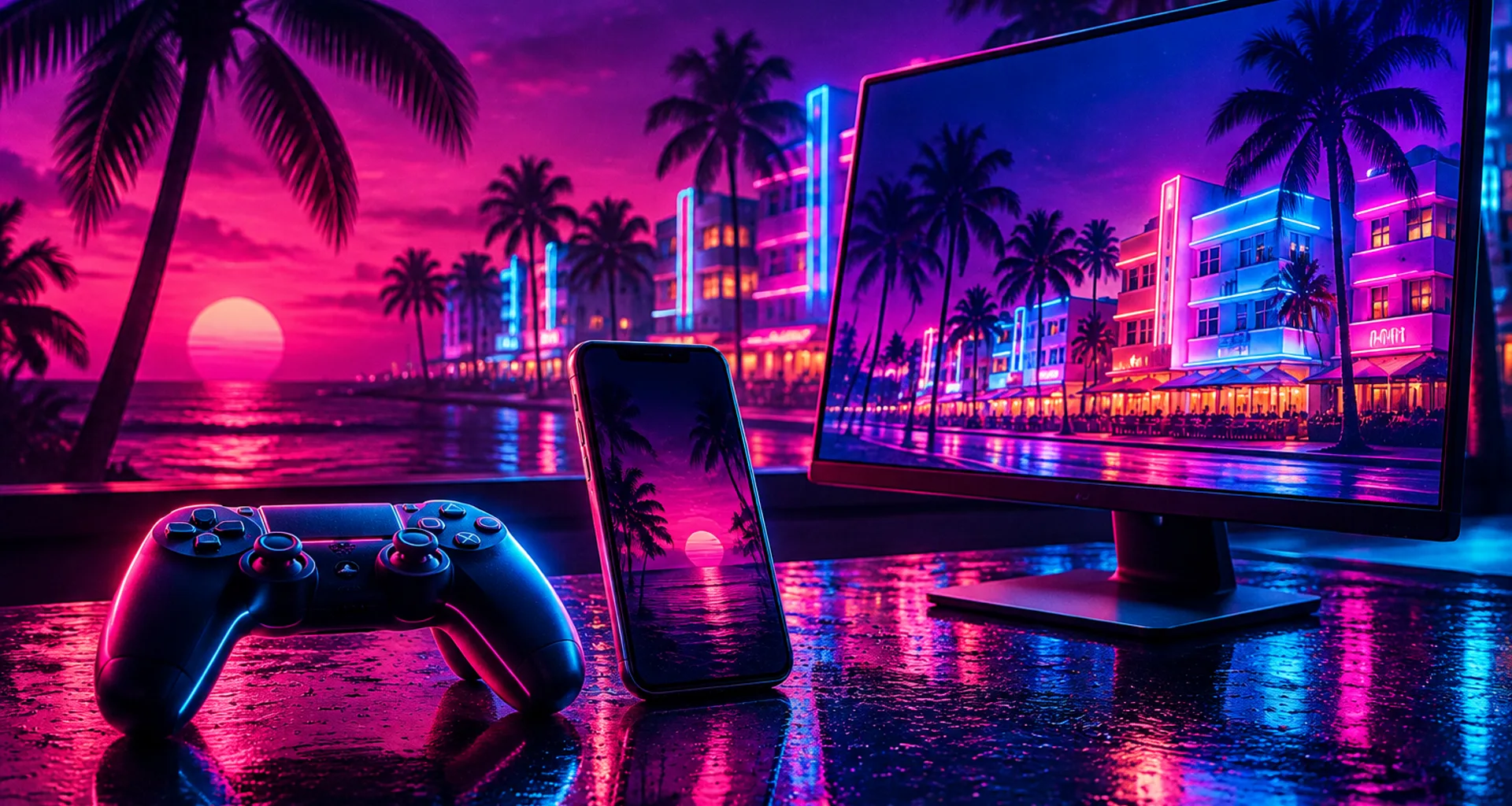
Nailed the perfect shot in Vice City and ready to share it? Before you post it to the Sixième Vue gallery, you'll need to get it off your console. Good news: both PS5 and Xbox Series offer easy, free ways to do it, most without a cable. Here are all the methods, from the quickest to the most versatile.
Editor's note: these methods use console features, not a GTA 6-specific option. They'll work for all your screenshots, whether you use the game's photo mode or your controller's capture button. Menu names may vary slightly depending on your console's software version.
Before You Start: Take a Screenshot
- PS5: Press the Create button (to the left of the touchpad), then select “Take Screenshot.” You can also configure a long press of the Create button to take a screenshot directly.
- Xbox Series: Press the Share button (in the center of the controller). A short press takes a screenshot.
Tip: Hide the game interface (map, prompts) before taking your screenshot, if the display settings allow it. Your photo will look much better.
PS5 to Phone: The PlayStation App
Your PS5 can automatically upload your screenshots to the PlayStation App on your phone. Once it's enabled, you don't have to do a thing.
- Install the PlayStation App (iPhone or Android) and sign in with the same account you use on your PS5.
- Link your console to the app if you haven't already (the app will walk you through it).
- On your PS5, go to Settings > Captures and Broadcasts > Captures, then turn on Auto-Upload.
- Take your screenshots in GTA 6 as usual.
- On your phone, open the PlayStation App, then go to Game Library > Captures.
- Open the screenshot and tap Share or Download to save it to your phone's photo gallery.
To upload a single screenshot taken before you enabled auto-upload, open Media Gallery on your PS5, select the screenshot, press the Options button, then select “Upload to PlayStation App.”
Tip: Screenshots only stay in the app for 14 days. Save any you want to keep to your phone.
Tip: Automatic trophy screenshots aren't uploaded, only the ones you take yourself.
PS5 to PC: USB Drive
To transfer lots of screenshots at once, or get them in full quality, a USB drive is still your best bet.
- Get a USB drive formatted as exFAT or FAT32 (most drives are sold in one of these formats).
- Plug it into a USB port on your PS5.
- Open Media Gallery.
- Select one or more screenshots using the multiple selection button, then choose “Copy to USB Drive.”
- Safely remove the drive, plug it into your PC, and open it. Your screenshots are in a PS5 folder (under CREATE), organized by game.
Tip: Under Settings > Captures and Broadcasts > Captures, you can choose your screenshot format. PNG preserves full quality, while JPG takes up less space.
You can also use the PlayStation App on your phone, then transfer the image from your phone to your PC using a cable, AirDrop, Google Photos, email, or another method.
Xbox Series to Phone: The Xbox App
On Xbox, screenshots taken with the Share button can be automatically uploaded to the Xbox network cloud, where you can access them through the Xbox app.
- Install the Xbox app on your phone and sign in with the same account you use on your console.
- On your console, press the Xbox button, then go to Profile & system > Settings > Preferences > Capture & share.
- Under “Automatically upload,” choose to upload your captures.
- Take your screenshots in GTA 6.
- On your phone, open the Xbox app, then go to My Library > Captures.
- Open the screenshot and tap Share or Save to add it to your phone's photo gallery.
For a single screenshot, press the Share button right after taking it, or open Capture & share > Recent captures, select the image, and choose to upload it to the Xbox app.
Tip: You'll need a stable internet connection on both your console and phone, or your screenshots may not show up right away.
Xbox Series to PC: OneDrive or USB Drive
With OneDrive (wirelessly):
- Under Capture & share, select a screenshot.
- Choose “Upload to OneDrive.”
- On your PC, open OneDrive (the Windows app or onedrive.com) using the same Microsoft account. Depending on your version, the screenshot will be in the Videos or Pictures > Xbox Captures folder.
With a USB drive:
- Plug a USB drive into your console.
- Under Capture & share > Manage captures, select your screenshots.
- Choose to copy them to the external device. If the console asks you to format the drive, back up its contents first: formatting erases everything.
- Plug the drive into your PC and retrieve your images.
Tip: On Xbox, you can also set a USB drive as your capture location in the Capture & share settings. Handy if you take a lot of screenshots.
Post Your Screenshot to Sixième Vue
Once the image is on your phone or PC:
- Sign in to Sixième Vue.
- Tap Upload.
- Choose the image from your gallery (phone) or files (PC).
- Add a title, a few tags (location, time, vehicle), and your platform.
- Check “Screenshot from my own game” and submit.
Your photo appears in the gallery right away. The image is automatically optimized, and you can upload a file up to 10 MB.
FAQ
How long do screenshots stay in the PlayStation App?
14 days after they're created. Save them to your phone if you want to keep them.
Why aren't my PS5 screenshots showing up in the app?
Check that auto-upload is enabled, your console is connected to the internet (or in rest mode with its internet connection maintained), and you're using the same account. Only screenshots taken after enabling the feature are uploaded.
What format should I use for a PS5 USB drive?
exFAT or FAT32. Most drives are sold in one of these formats.
How can I get my Xbox screenshots without a cable?
Use the Xbox app on your phone or OneDrive on your PC, with the same Microsoft account you use on your console.
Can I post a picture of my screen taken with my phone?
You can, but the quality will be much lower because of reflections, blur, and moiré patterns. Use the methods in this guide instead.
What's the maximum file size for uploading to Sixième Vue?
10 MB per image. Console screenshots are almost always smaller than that.